
MMVJ - force-feedback-enabled mouse steering and more: HID and MIDI transforming I/O mapper and virtual HID manager, for Linux.
Skipto Disclaimer/development notice
Skipto Features
Skipto Installation (new: binary appimage release)
Skipto Usage
Skipto Application glossary
Skipto Configuration
Goto FAQ ...
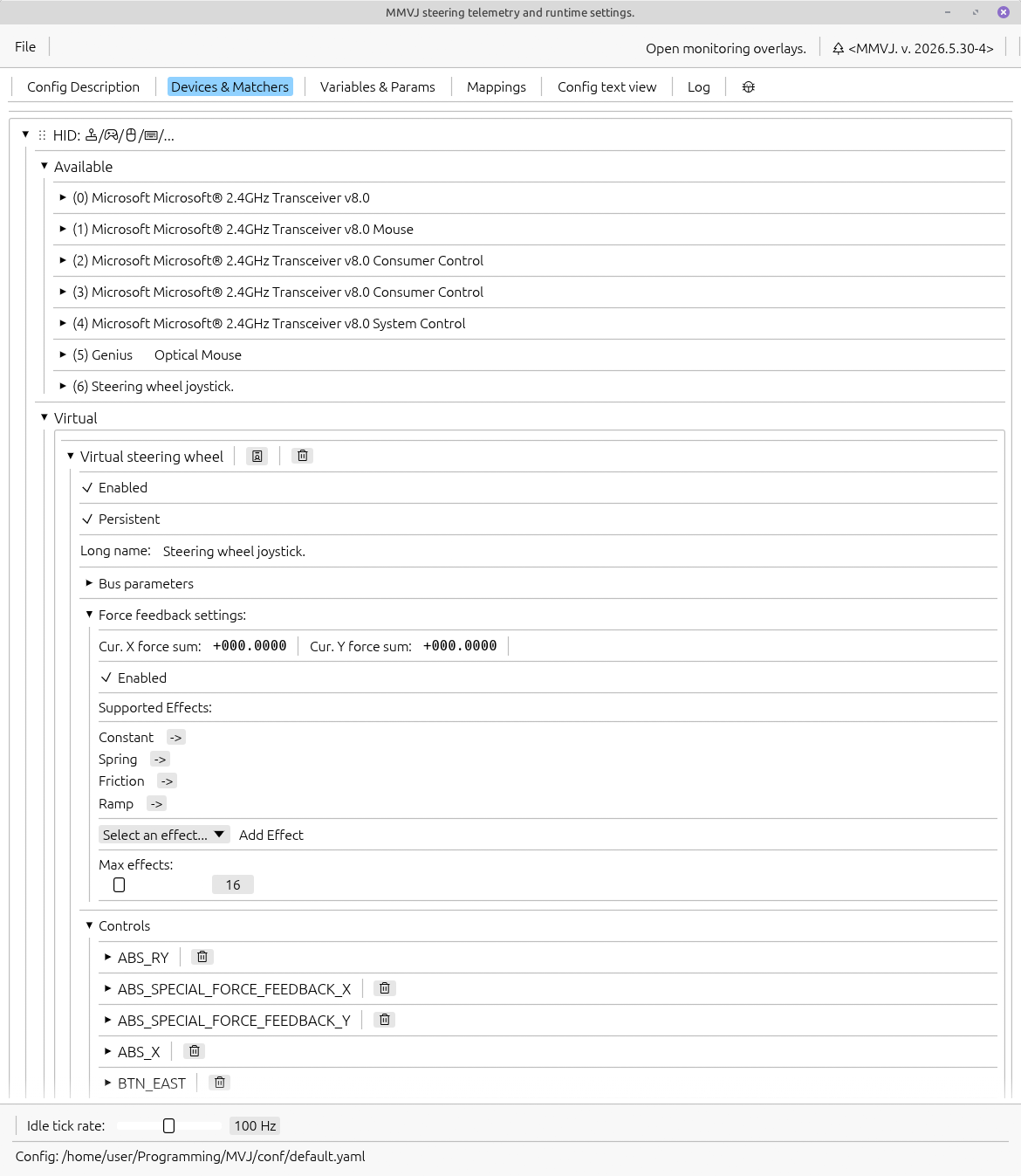
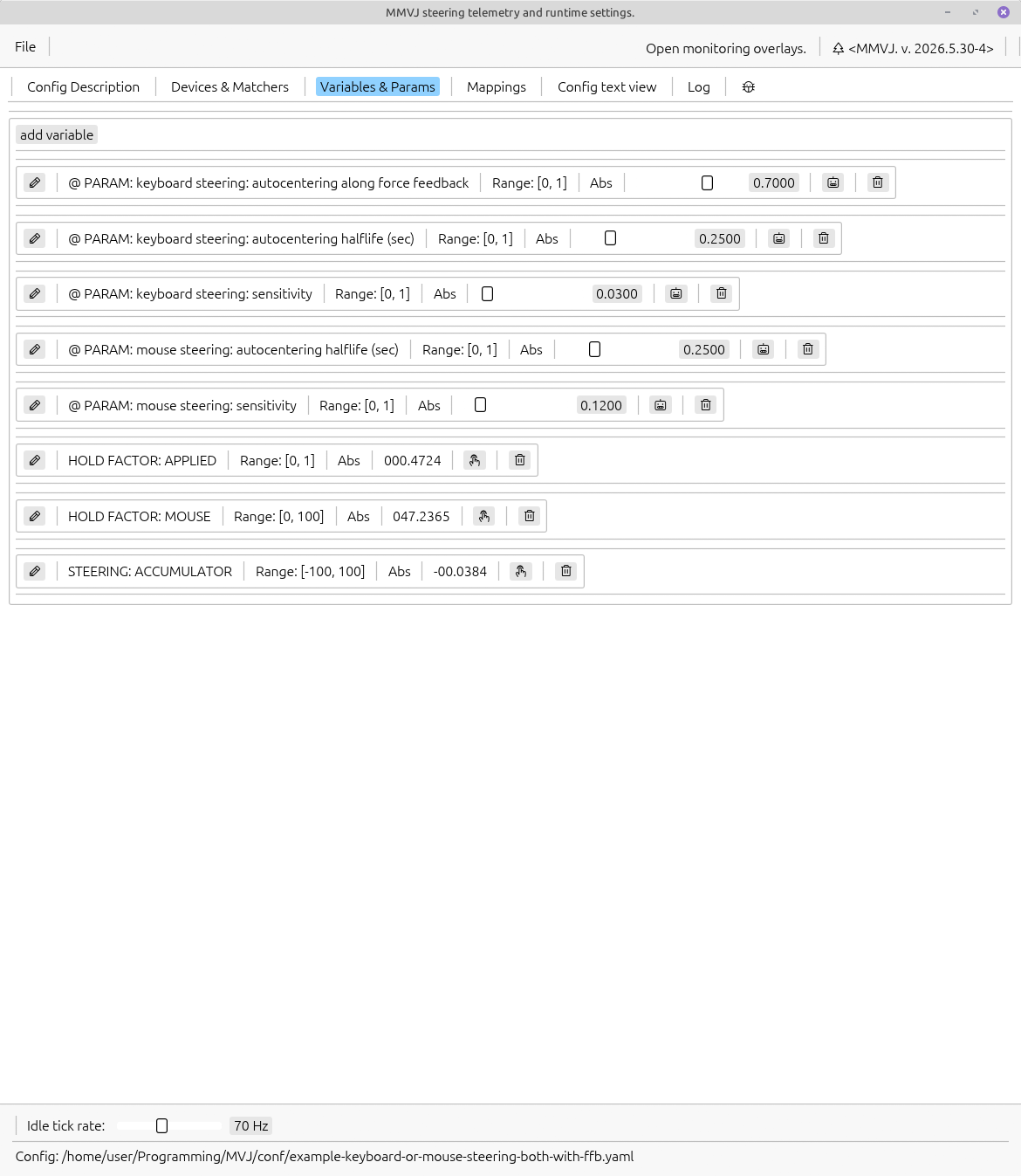
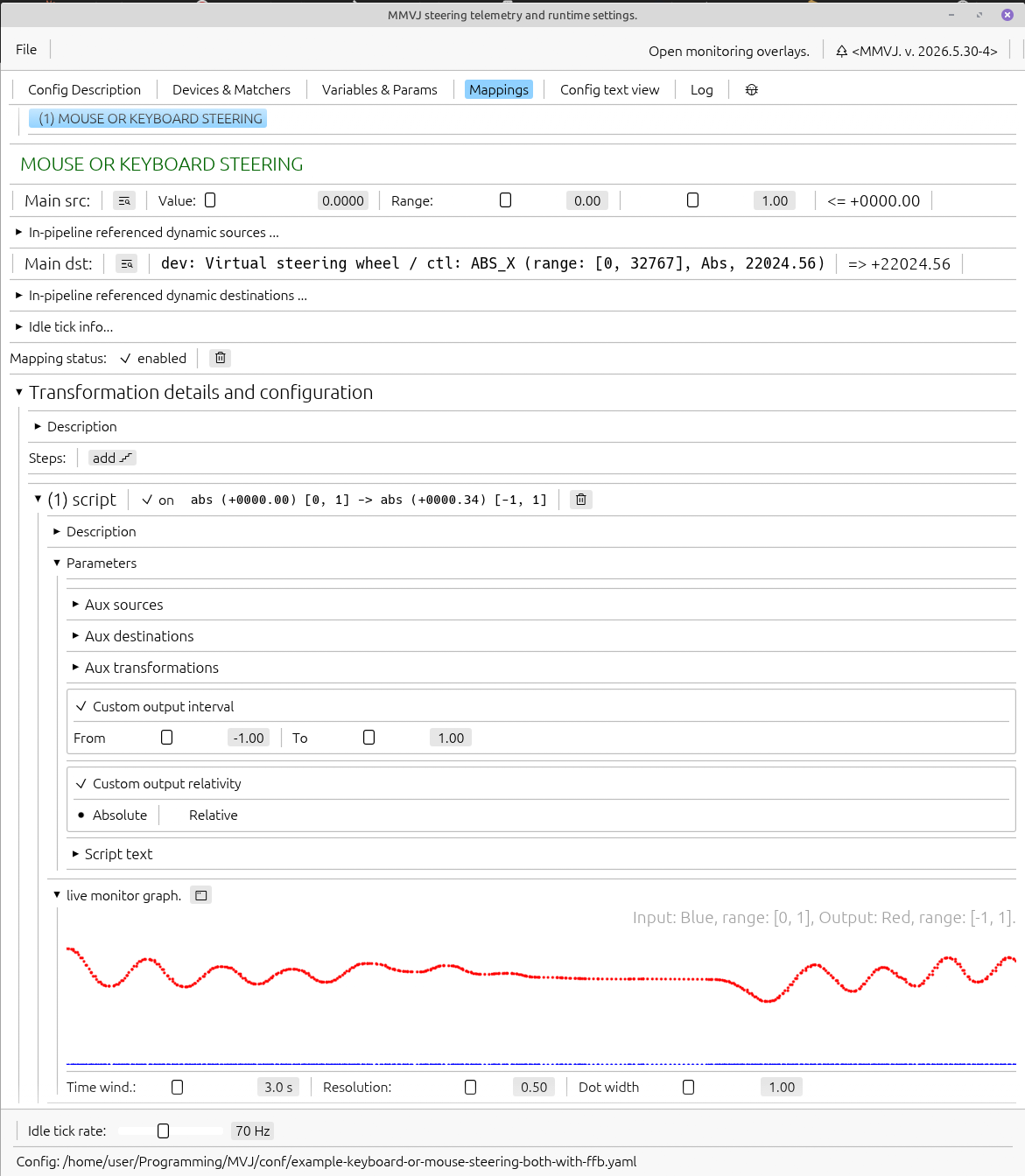
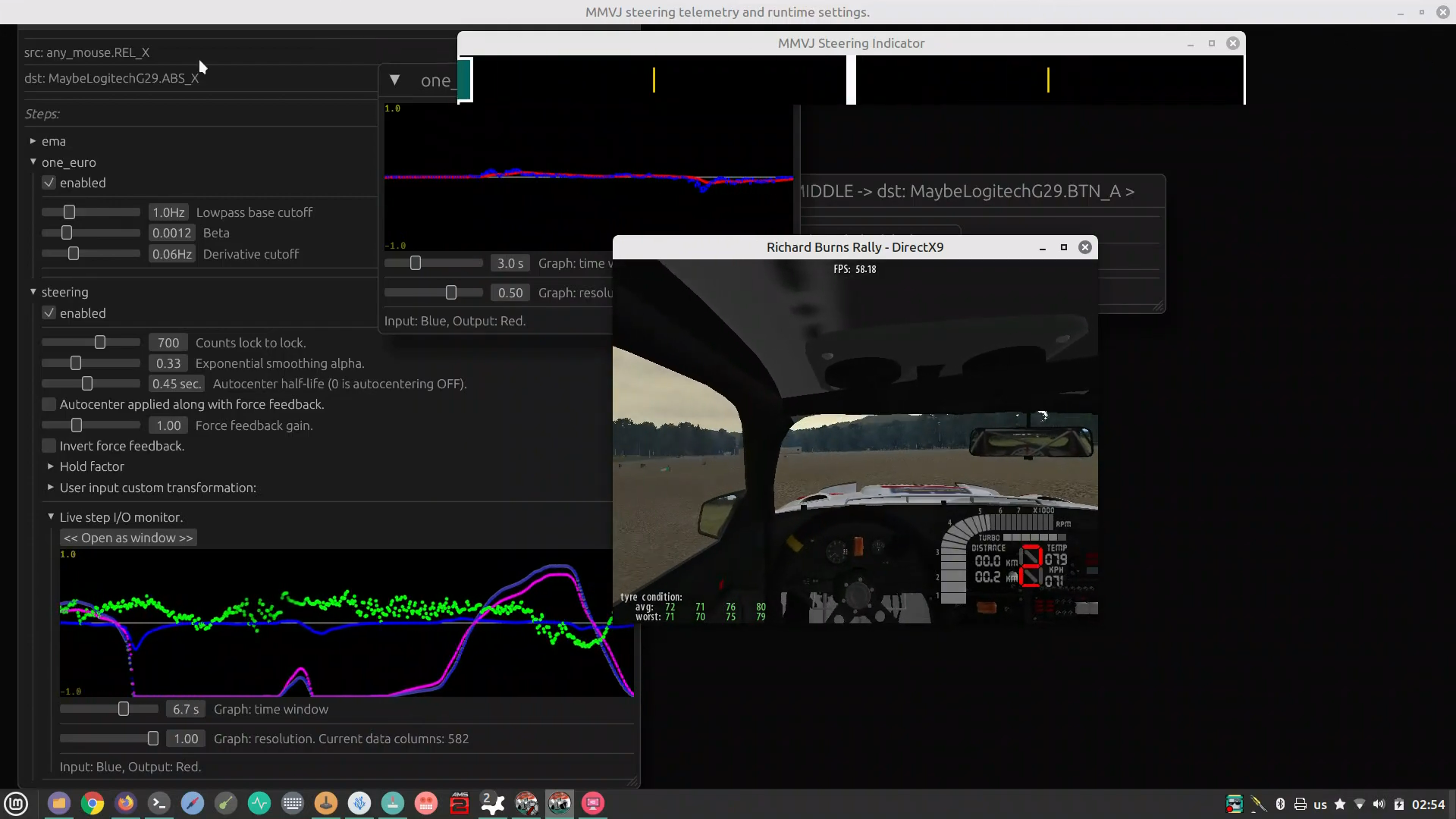
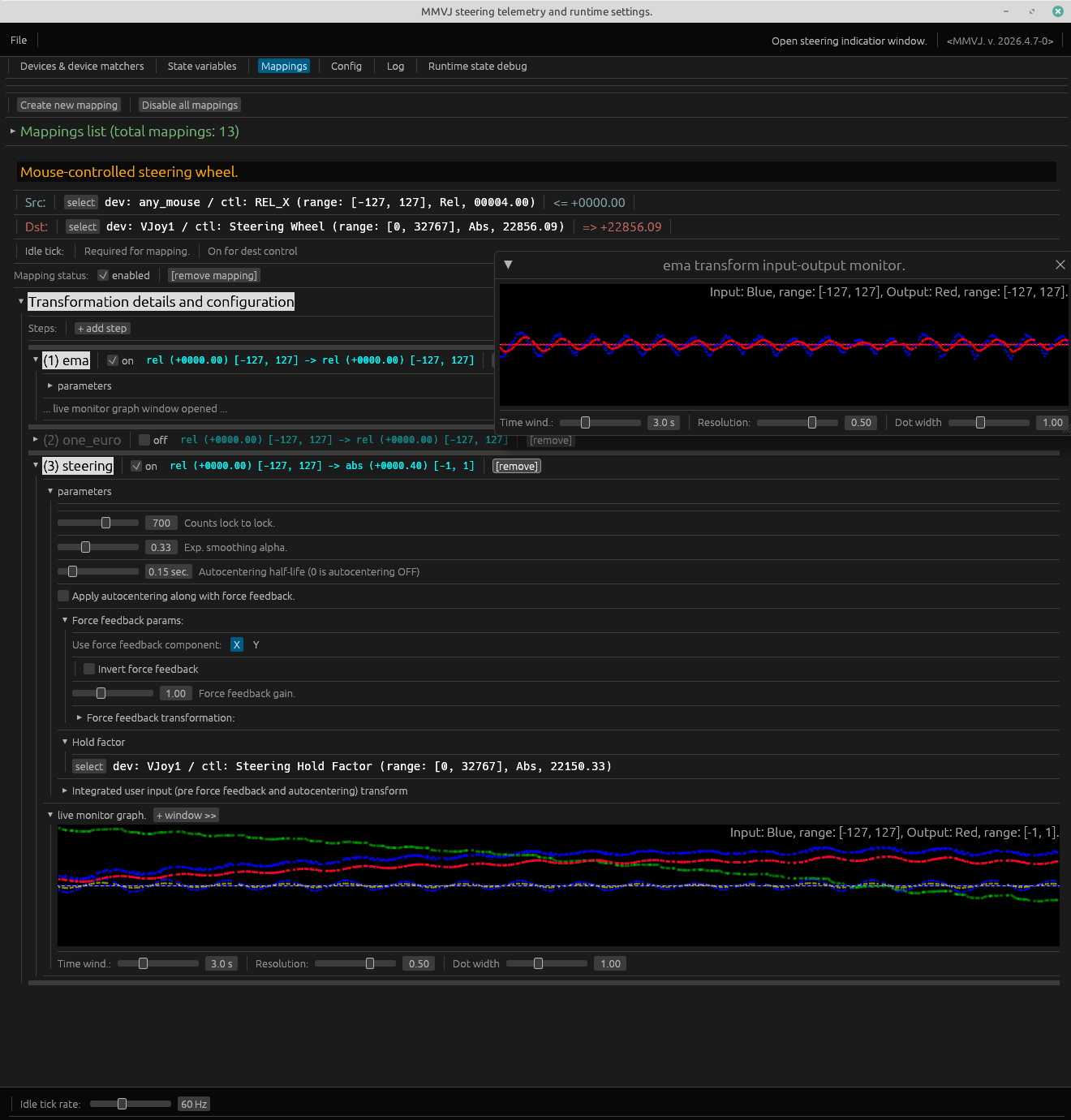
The following image shows visual debugging of force feedback application (seen in green) with mouse to joystick steering transformation.
--gui
command line option or just double click on appimage when under your favourite desktop.
Regarding steering wheel simulation (in particular), force feedback checked to work with "Richard Burns Rally" (NGP), "Euro truck sim", "Race Room", "Rush rally 3" (all of them use constant force effect). Other effects such as Spring and Friction are also supported. If seeing trouble with your use case and wish to help, please run the program with --debug-ff flag and send me the the output.
Please notice, that these effects refer to effects supported at the level of virtual joystick logic itself, in its force feedback player. Except for constant force effect (which comes from client application like a racing game from its physics engine (and is of most interest to our application)) can be simulated by our own mappings whenever required according to your preference (in the same way they can be overridden in a real steering wheel driver app).
- Constant: yes (contemporary games with advanced physics engines primarily use this)
- Friction: yes
- Spring: yes
- Damper: no (waiting for relevant fix push to mainline),
- Inertia: no (waiting for relevant fix push to mainline)
- Ramp: yes
- Rumble: no (no need for our application, but is planned to be added)
- Periodic/Waveforms: no (no need for our application, but is planned to be added)
- Autocentering: no, handled separately by steering transform step
- Gain: no, handled separately by steering transform step
Application can "fake" that it supports any of unsupported effects if virtual joystick is configured to support them (for debugging purposes and games that would otherwise misbehave).
Some early video demo of MMVJ being applied in rally simulation:
> if you wish to make a review, please make sure to see the development status notice and if having any troubles with the app, please contact the author. I'd be totally happy to get direct feedback <
- Matches devices by name regex and control types (runtime is still fast as we compute routing index on initialization).
- Creates virtual HID (Mice/Keyboards/Joysticks) devices: configure any number of Virtual Joysticks, Gamepads, Mice or hybrid devices with any sets of controls.
- Supports virtual HID (e.g. Virtual Joysticks) persistence: across configuration changes.
- Supports shared state variables/manually configured params: configure any number of variables with ranges metadata to use as intermediate inputs or outputs in mappings graph.
- Remaps and transforms (advanced pipelines with shared and local state included) signals between different kinds of devices (e.g. [1]):
- Allowed inputs: Variables, MIDI and HID (Mice/Keyboards/Joysticks (including force feedback readings from virtual ones)).
- Allowed outputs: Variables and HID (Mice/Keyboards/Joysticks).
- Transformation steps available out of the box include curves, filters, intuitive steering wheel emulation, arithmetics, custom scripts (Luau)
- Detail on steering transformation used in simracing, flight and other simulator gaming:
- Supports force feedback: accepts constant force and other effects (see the FAQ why this matters).
- Supports configurable autocentering (useful if no force feedback available or as an auxiliary behavior).
- Supports intuitive emulation of hands holding the steering wheel with different force **(a.k.a "hold factor" affecting the two mentioned above.
- Force feedback readings from virtual HID (Virtual Joysticks) are also avaialbe as general readings on special internally-visible controls, enabling force feedback as input in arbitrary places of transformation pipelines (read and apply them from scripts or for ad-hoc parametrisation of transformation steps).
- Detail about Luau scripting: define scripted transformation steps having multiple optionally defined inputs, outputs (e.g. to use as hubs for smart signal routing) or child transformation pipelines synchronously runnable from the script.
- Detail on steering transformation used in simracing, flight and other simulator gaming:
- Allows runtime re-configuration and monitoring via Gui (including per-step runtime signal graphing and parameters tweaking). Performs configuration validation and hot-reloadig on configuration file changes when in command line mode.
- Supports console-based monitoring mode for HID and MIDI devices as well as in-Gui monitoring of device control matchers (see below) states.
[1] One fancy configuration example: using 2 mice devices, mapping one's X movement to steering, Y movement to "hold factor" and a button to handbreak, whereas Y movement of the second mouse mapped to two separate brake and throttle axis of a target virtual joystick (it's achievable by accumulating relative input and mapping upper subrange of the integrated value to throttle and lower subrange (inverted) to breaking (See configuration examples (pre-bundled with the app and loadable via Gui)))
- The engine is made to run with low latency: a main loop iteration usually takes < 1ms.
- Provides three modes of execution:
- Reactive: mappings run for every sample received (responsive, but high-frequency mice devices may cause higher CPU load).
- Capped: mappings run with frequency not exceeding the configurable mapping cap frequency (a balance between Reactive and Stable modes).
- Stable: mappings run with constant frequency (still responsive, depending on mapping frequency configured, good for high-frequency mice devices not to overload the CPU).
- A user may seamlessly switch between modes depending on particular use case.
- Currently the default mode is Reactive, but for high-frequency input you may want to change it to Capped (most likely it'll be the default in the future).
- Idle tick (running e.g. filters or autocentering logic when no active user input is happening) frequency is separately configurable from 10 to 1000 Hz. For Capped and Stable modes mapping frequency is automatically ensured to be not less than idle tick frequency.
While being useful to control CPU load when working with devices reporting at high-frequencies (e.g. gaming mice) Capped and Stable modes, due to the fact that relative delta is being accumulated for the configured mapping period (according to mapping frequency (limit in Capped mode)), bear execution "artifact" decribed below so that a user was not confused.
Because of this "non-immediate" reaction and value accumulation the resultant relative delta values may well exceed estimated/expected per-single sample value, this is normal. During transformations they are not being clamped and are remapped with extrapolative behavior, yielding values possibly outside of the configured remapping intervals). As all the normalization is done proportionally to the estimated/expected per-sample range, this behavior is sound and results in similar effects (except for values getting updated in accordance to configured frequency limit and not "immediately" as in Reactive mode) for all the built-in transformation steps.
E.g. moving mouse for the same distance over same time will result in same steering effects whether we are using Reactive, Capped or Stable modes with any settings, except for the fact that in Capped and Stable modes the joystick position will change with the granularity of configured mapping and idle tick frequencies and not "immediately".
Are used to match existing devices by device name regex and corresponding controls. Each device matcher can match multiple devices so that when it's used as source - any device matched by the matcher will result in running relevant mappings whenever input from corresponding devices is seen. For each device matcher we specify control matchers. The latter are used to automatically classify the device matcher (Mouse/Joytick/Gamepad/Keyboard/etc), correlate it with existing host devices based on this classfication and as sources or destinations for mappings.
E.g. we can match any mouse device by creating a device matcher having ".*" name regex and providing some mouse-specific control matchers along with it (e.g. REL_X, REL_Y).
Similarly, we can match any keyboard by creating a device matcher with same name regex of ".*", but specifying keyboard-specific control matchers such as KEY_A, KEY_SPACE, etc.
To match a specific device we use name regex field and provide specific device's name. Currently it's not possible to match devices per bus-level properties such as vendor/produc/bus type info, but this functionality can be added on demand.
A "hybrid" device matchers having controls specific to different kinds of devices are also allowed. Those will act as a catch-all matchers, gathering or broadcasting all corresponding types of devices data. E.g. a device matcher with name regex ".*" and containing configuration of REL_X, ABS_X and KEY_A controls will be classified as a hybrid device matcher and will match any of Mouse, Joystick or a Keyboard device.
Example device matcher config:
devices:
  hid:
    any_mouse:
      enabled: true
      match_name_regex: .+
      controls:
        REL_X:
          type: REL_X
          range:
          - -127.0
          - 127.0
        REL_Y:
          type: REL_Y
          range:
          - -127.0
          - 127.0
Specify which control (in physical world those correspond to a "knob"/"button"/"slider"/"pedal" etc) type to capture or to write to, value range and control-specific properties (like initial value for asolute axis controls).
- Examples of controls for HID devices are absolute axes (e.g. ABS_X), buttons (e.g. BTN_SOUTH), keyboard keys (e.g. KEY_SPACE).
- For MIDI devices we abstract control types as a NOTE, PITCH_WHEEL, generic CONTROL_CHANGE (for the latter we specify predefined templates to match MODULATION_WHEEL, EXPRESSION_PEDAL and some other typical controls). Each MIDI control matcher additionally to basic type specifies relevant detalis: midi channel (or a set of such including any), note/control number (or a set of such including any).
Application contains predefined definitions for most HID and MIDI control matchers, please see corresponding file. Configuration directory contains example configurations in which you can see how these are used in contexts of device matchers and mappings. Predefined control templates can be used as is or as starting point to match a certain type of control: all the parameters of a control matcher can be configured by the user (e.g. you can override expected range (currently will result in clamping behavior relative to the device control range)).
The engine is capable to spawn any type of virtual HID device with any combinations of supported HID controls. Beware that OS will classify (and use) those according to its own logic.
Example virtual device config:
devices:
  hid:
    Virtual Steering Wheel:
      enabled: true
      description: ''
      name: Virtual Steering Wheel.
      persistent: true
      bus:
        type: Usb
        vendor_id: 42
        product_id: 43
        version: 44
      force_feedback:
        enabled: true
        effects:
        - constant
        - spring
        - friction
        - ramp
        max_effects: 16
      controls:
        Axis X:
          type: ABS_RX
          range:
          - 0.0
          - 32767.0
          initial_value: 0.0
- Mapping is the scheduled entity of execution. It's used to transfer values coming from input devices controls to some outputs while providing with advanced value transformations along the way.
- Each mappings' transformation steps are executed sequentially.
- All mappings are executed concurrently with relation to each other.
- The set of all mappings constitutes the total graph of transformations.
- Each mapping specifies at least one source (input) and at least one destination (output) and optional transformation pipeline, where you can specify steps of processing, executed in-sequnece on incoming samples.
- Distinct processing steps may have additional sources (inputs) or destinations (outputs) (e.g. a script processing step can have arbitrary number of both).
- Distinct processing steps may have child user-configurable transformation pipelines. E.g. steering transformation allows specifying custom pipeline to transform force feedback readings and custom pipeline for integrated user input. Script processing step allows specifying arbitrary number of child transformation pipelines to be triggerd from the script itself and executed synchronously as part of the script processing (this part is actively develped currently to support custom input range (current defaults to [-1,1]) and relativity (current defaults to Abs)).
For mappings configuration examples see full config examples here
Variables are named dynamically updatable and, optionally, manually-configurable values that can be used as both sources and destinations anywhere within the total graph of transformation.
A variable has associated value range metadata, variables currently are treated as Abs values. It's possible to specify and reference/use any number of variables. Variables can be used as intermediate storage to transfer data between mappings or for any other purposes.
Variables marked as manually-configured have their values stored to config on config save or restored from config when it's loaded.
Variables which do not have manually configured values do not load their values from config and do not have those stored in config.
Example variable config:
variables:
  Steering Hold Factor:
    range:
    - 0.0
    - 100.0
    relativity: Abs
  A manually configured variable:
    range:
    - 40.0
    - 44.0
    value: 42
- Static values (with corresponding range). Those can be used as input parameters to transformation steps or even to mappings themselves.
- Dynamic value references.
- Variable reference.
- Device control matcher reference (in source role they capture values coming from matching devices controls and cache those for further use in mapping).
- NB: Beware that those can correspond to multiple devices controls (whenever the device matcher matches many devices by name regex) and will get "push-updated" with the latest value of the latest changed control of any of matching devices. It can be convenient whenever you use those devices only one at at time (e.g. matching REL_Y of any mouse while having many mice devices attached but using only one at a time), but can result in interference when those devices trigger control changes simultaneously. For the latter case consider configuring device matchers with better granularity (e.g. match exact devices names). Device matcher has associated value range. Currently we do not remap to/from controls value ranges if reported by the os, the value is clamped the the configured range and warning reported.
Examples of sources in the context of main mapping source:
mappings:
  - source:
      var: My Variable
    <...>
mappings:
  - source:
      device: My Virtual Joystick
      control: Axis X
    <...>
- Void: this type of destination will discard any input. It's mainly used as a reasonable default.
- Dynamic value references: same as for sources, variable references and device control matcher references with the following notes:
- Writes to variable references can collide if done concurrently from multiple sources (e.g. from different mappings). If - for some reason - you deside to update a variable from multple sources in many cases it's better to use a script with multiple inputs defined and this variable as an output, which will do the multiplexing intelligently.
- If a device control matcher used as destination from multiple sources - same principle as with variables applies: make sure you have no concurrent inputs happening either by using an intelligent script-based multiplexing or by thinking through your usecase (e.g. multiple intputs are triggered by different input devices that you don't manipulate simultaneously)
- Whenever a device control matcher matches controls of multiple devices, the value gets broadcasted to all of them.
Examples of destinations in the context of main mapping destination:
mappings:
  - destination:
      var: My Variable
    <...>
mappings:
  - destination:
      device: My Virtual Joystick
      control: Axis X
    <...>
Are abstractions over value sources, destinations or source-destinations. They allow specifying additional remapping and/or a general transformation pipeline for value being read or written. Transformation steps allowing both static and dynamic parametrisation use value ports to source parameters. Script transformation uses them as auxiliary sources and destinations.
Processing is happening either due to active user input (event-driven, with the frequency of user input) or by the internal clock with configurable frequency. The latter is necessary for transformations that require processing post-user-input (e.g. autocentering during steering simulation, filters application) or require by-timer processing irrespective to user input happening or not (such as scripts).
Each value within transformation pipeline is associated with numeric interval (range) and is marked as relative or absolute (relativity marker). Devices controls, variables, transformation steps outputs - all have both of those defined.
Values coming in and out are expected to be within configured ranges. Whenever source and destination are in different ranges those will be automatically remapped; this happens everywhere with two special cases.
Values received as device control inputs and being out of configured range are clamped with warning emitted (reporting incoming value and expected range). Device control matchers must be configured such that the incoming values fall within the configured control matcher ranges (the mode in which device control range information is available from OS and autoremapping is done is not possible for all types of controls: currently evdev will only provide range info for absolute axis, so we rely on "sane" predefines in all cases).
Script transformation step, in which it is the duty of the script to provide value in expected output range and process inputs with respect to whatever input range is. However, for script author's convenience, optional remapping ranges can be specified per auxiliary source and per auxiliary destination. Denoting a value range to be used within the script. If set, for sources the remapping will be done from source range to remapping range before passing a value to script and for destinations - from remapping range to destination range before passing value from script, automatically. If not set - the script will work with ("native") ranges. Auxiliary pipelines, if configured, for the script are also configured for specific input range and relativity. Similarly to inputs and ouputs it's script's duty to provide value within appropriate range as such pipeline input. All values coming from script and falling out of configured ranges shall be automatically clamped with warning emitted.
All the values within the transformation pipeline have a relativity semantic marker. Values marked as relative (Rel) are handleded specially in accordance to the following rules:
- In Capped and Stable execution modes relative values get accumulated between mappings execution, due to the fact that mappings do not run "immediately" as in Reactive mode, but are (possibly (for Capped mode)) delayed in accordance to configured mapping frequency.
- Values of device control matchers marked as relative get reset to 0 only after mappings execution.
- Relative values get remapped/normalized proportionally to the estimated/expected per-sample range that is set via relevant device control matcher. In Capped and Stable execution modes remapping allows extrapolative behavior and clamping is not applied to such values.
- Writeback to relative control matchers is done as-is even if relative delta accumulated exceeds estimated/expected per-sample input range. (WIP) This behavior will be improved to emitting multiple events split accordingly to the estimated/expected per-sample input range.
Make sure you override joysticks to be DInput and not XInput in Wine control panel, because XInpit controls do not support this kind of FFB, which is specific to steering wheels and not gamepads.
Open Wine Control panel and go to "Game controllers", or run in terminal with e.g.
wine control joy.cpl
(make sure this wine is the one you are running your game with in case you have many of them in the system. If using Lutris or alike open wine control panel from the GUI to configure the proper one). If joystick is present among XInput ones, select the controller on the left and press "Override" button on the right. Go to DInput tab and check that joystick is selected, check that ConstantForce is displayed in the list of force feedback effects.
Be conservative with configurations for practicality: because the engine allows mapping of many sources to many destinations including broadcast scenarios even from single mapping (e.g. when destination device control matcher matches with same control on multiple different devices) make sure that you can handle it while setting controller in a game (depending on your configurations some controls can move simultaneously or in relation to each other and games WILL get confused on what controller is meant to be set to a function :) ).
E.g. steering an RWD group B rally car feels totally different from controlling a FWD group A or a modern AWD one. And is also different from steering an airplane... or a spaceship or... whatever! Riding on snow will have different characteristics than going to tarmac or gravel... multiply it all by weather conditions, surface variations, tires type and wear, etc.
So, power users may have different configurations for different use-cases. They need align the setup with application context for the best performance possible.
As an example, for a particular rally car and type of ride one MAY want to
* ... Decrease or increase autocentering timing (make it snappy or disable it by setting to 0),
* ... Decrease of increase force feedback influence: to balance between help with self-alignment resulting in e.g. steering wheel counter-rotations while going sideways vs reducing strain not to fight too much of a prominent FFB if feeling that too much excessive counter-movement is required.
* ... Use harder or softer smoothing on user input (lower steering.smoothing_alpha, e.g. 0.2 or increase smoothing or do the opposite for more quicker response). Think of simulating a heavier or a lighter steering wheel.
* ... Apply some filtering for force feedback signal.
* ... Use a flatter curve for user input (e.g. a power curve between 1.0 and 1.1) to keep response in the center as agile as at the extremes, or more concave-up one (1.3 or more )- to make it less responsive in the center, or maybe even a bit less than 1 like 0.975 to make it more responsive in the center and less - at the sides.
* ... Maybe after steering transformation step install another concave up exp curve (exp > 1.0) to make overal steering wheel movement (not only user input, but including force feedback and autocentering) gentler in the center.
* ... Add a low-pass/one-euro filter at the end of pipeline to finally smoothen the overal wheel movement eliminating to much high-frequency movements.
Who knows what a user may consider comfortable based on personal preferences, hardware specifics and target application context?
Whatever you are tweaking, see the telemetry graphing, device monitoring and --debug modes are there to help you with it.
While the configuration guide is WIP (configuration format is being stabilized), please read example configuration files.
- Linux (uses evdev/uinput).
- Rust >= 1.92.0 (MSRV)
- ALSA for Rust crate midir for MIDI devices access (usually included by default in desktop Linux installations).
- Membership in the
inputgroup or (generally not advised) root access.
- My personal preference is jstest-gtk: https://github.com/Grumbel/jstest-gtk
- Or can use e.g. a command-line jstest utility , but it's not "visually" informative.
# Add user to input group (for virtual joystick creation)
sudo usermod -a -G input $USER
# Logout and login again for group changes to take effect

# Enable uinput module (for force feedback)
sudo modprobe uinput
Download binary releases here (or build manually with cargo if binary release doesn't work on your system (takes a few minutes, see below for instructions)).
Release contains pre-built application and configuration packed in appimage format.
To run it,
- Add executable permission
chmod +x mmvj*appimage - Run it!
./mmvj*appimage- When running from terminal will by default start in command-line mode. To enable gui run it with --gui option.
- When running from gui will by default start in gui mode.
- On start application will create conf/ directory in current working directory, where set of example configuration files will be automatically extracted.
Those can be manipulated/saved, they will not be automatically overwritten.
# Clone the repository
git clone --depth 1 https://github.com/leosat/MMVJ

# Enter the repository clone directory
cd MMVJ

############## >>> BUILD <<< ###############
# >>> Build the project with GUI and MIDI support (Mice devices are enabled in core)
cargo build --release -j4

# >>> This is same as:
# cargo build --release -j4 --no-default-features --features "gui midi"

# >>> Do not enable neither GUI nor MIDI support:
# cargo build --release -j4 --no-default-features --features ""

# >>> Enable only mice and MIDI suport, but no GUI:
# cargo build --release -j4 --no-default-features --features "midi"

############## >>> FIRST RUN <<< ###############
# Display help
./target/release/mmvj --help

# Run mapping engine with default configuration.
./target/release/mmvj
# Run mapping engine with default configuration.
./target/release/mmvj

# Run mapping engine with custom configuration file.
./target/release/mmvj -c my_config.yaml

# Enable debug output.
./target/release/mmvj --debug

# Run with GUI
./target/release/mmvj --gui
# List available MIDI devices.
./target/release/mmvj enum-midi

# Monitor MIDI messages from a device.
./target/release/mmvj monitor-midi "Korg"

# Auto-learn MIDI controls.
./target/release/mmvj midi-learn

# List available HID (Mice/Keyboard/Joysticks/etc) devices.
./target/release/mmvj enum-hid

# Monitor HID (Mice/Keyboard/Joysticks/etc) events.
./target/release/mmvj monitor-hid

# Validate configuration file.
./target/release/mmvj validate-config
The recomended way to create configs is by using Gui mode. Run application with the --gui command line argument for that or just run appimage from under a desktop.
NB: these configurations are pre-bundled within the application and can be loaded using Gui/saved to files from there. Alternatively they can be downloaded and app run with them using -c <CONFIG FILE> command line switch.
- Minimal mouse steering-oriented config example + some keyboard mappings to joystick buttons
- Mouse OR Keyboard steering-oriented config example (uses Luau scripting for smart signal routing) with autoswitching between modes and hold factor for mouse being linked to Y movement and for keyboard - to DOWN and UP buttons // Both Mouse and Keyboard modes add force feedback signal to input and use additional autocentering. Use variables to tweak the behavior.
- Mouse OR Keyboard steering-oriented config example (no scripting) with autoswitching between modes and hold factor for mouse being linked to Y movement and for keyboard - to DOWN and UP buttons // Both Mouse and Keyboard modes add force feedback signal to input and use additional autocentering. Use variables to tweak the behavior.
- MIDI pedals or PitchWheel-based steering + Mouse steering with force feedback and autocetering
- Predefined control matchers config dump for definitions that you can reference in your config.
I click on appimage from my desktop, but it doesn't run.
Mark it as executable!
fuse: mount failed: Permission denied
Cannot mount AppImage, please check your FUSE setup.
You might still be able to extract the contents of this AppImage
if you run it with the --appimage-extract option.
See https://github.com/AppImage/AppImageKit/wiki/FUSE
for more information
Solution: run without fuse:
./mmvj --appimage-extract-and-run
Libasound.so.2 not found (needed for MIDI devices input)
# Install a libasound2* library,
# e.g. on Debian/Mint/Ubuntu/:

sudo apt-get install libasound2
Any other library:
Rebuild from source code, see instructions above.
# Option 1: Add to input group (recommended)
sudo usermod -a -G input $USER
# Logout and login

# Option 2: Run as root (not recommended)
sudo ./mmvj
# Load uinput module
sudo modprobe uinput

# Check if module is loaded
lsmod | grep uinput

# Make uinput persistent
echo "uinput" | sudo tee -a /etc/modules
# List all MIDI devices
./mmvj enum-midi

# Check ALSA MIDI devices
aconnect -l

# Check permissions
ls -la /dev/snd/
This application is in active development state and is used as a toy project by the author to learn the new programming language (with all the consequences) and is provided as is without any warranties. While still in development I'm finding it already quite useful and capable, so, I've decided to opensource it and provide for those who are looking for such a tool. When/if the project reaches production state, this warning will not be here.
For any questions (or anything else) feel free to contact me at leonid.satanovsky@gmail.com (Leonid Satanovskiy).
https://github.com/berarma/ffbtools
All rights reserved. Copyright: Leonid Satanovskiy.
When this app reaches production state this will be changed.
/* "GNU is not Unix." */
Pull requests are not yet accepted,
because please see the WARNING/DISCLAIMER at the top.
It will change as soon as the project gets in production-ready state